ClipClipv1.1.0
Frame-accurate video clip extraction for the Mac - without opening a full editing app.
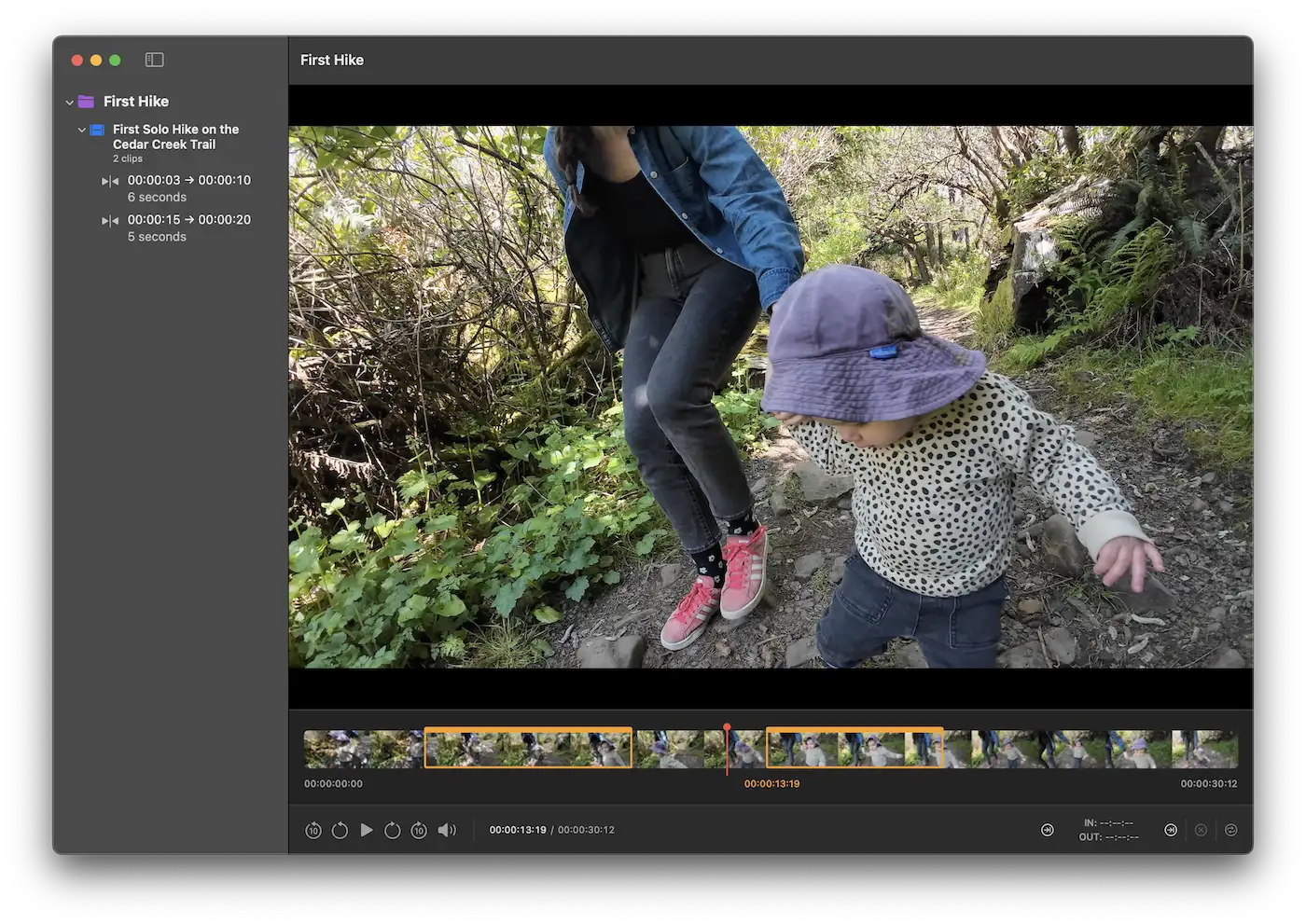
ClipClip is a clip-extraction tool for the Mac. Drop in a video, mark an in point and an out point, and export just that range as its own file. The timeline and shortcuts follow the conventions editors already know: JKL shuttle, frame-step with comma and period, I and O for in and out. Cuts come out frame-accurate at full source quality.
I made the app because I spend my days pulling selects from a lot of sources, and every option for the job forced a tradeoff. QuickTime meant trimming one file at a time and renaming each one by hand, and the source had to be QuickTime-compatible to begin with. The free clip apps had clunky UIs and features I didn't need. An NLE could cut footage fast, but exporting with my filename conventions was just as slow as QuickTime. ClipClip is the tool I wanted to use.
Who it's for
If you pull selects from a lot of source videos and need to organize and automate file names this app is for you. Archivists or visual researchers pulling clips for clients to review. Journalists pulling reference material. Anyone whose workflow involves scrubbing through a lot of footage, grabbing important moments, and moving on to the next source.
How it works
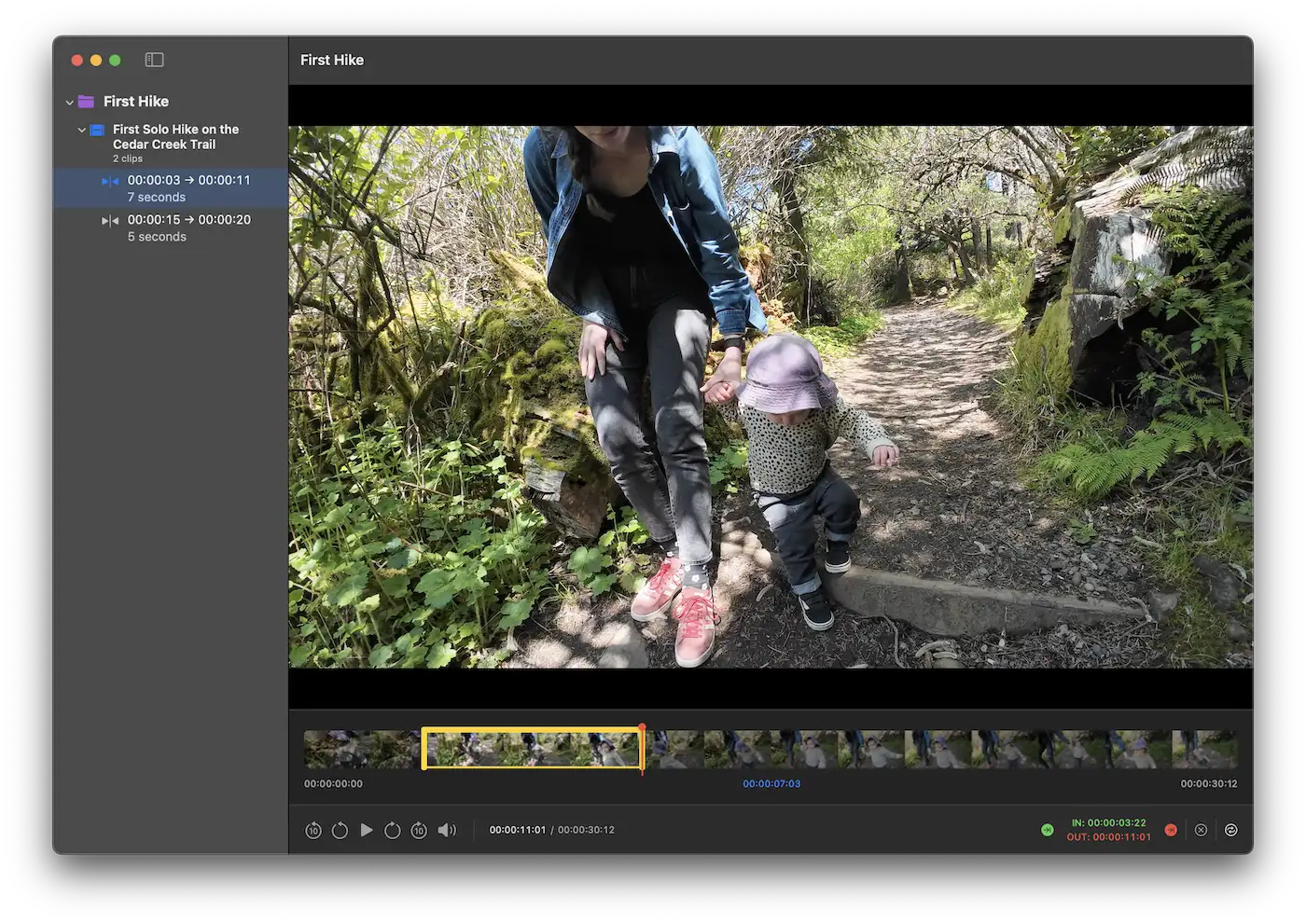
You create a project, a named collection of source videos and the clips you pull from them, and drag videos into the sidebar. Play with J/K/L, step a frame at a time with , and ., mark the start with I and the end with O. The moment both points are set, a clip appears in the sidebar. Click it later to fine-tune its duration: drag the yellow handles on the timeline, or re-press I and O.
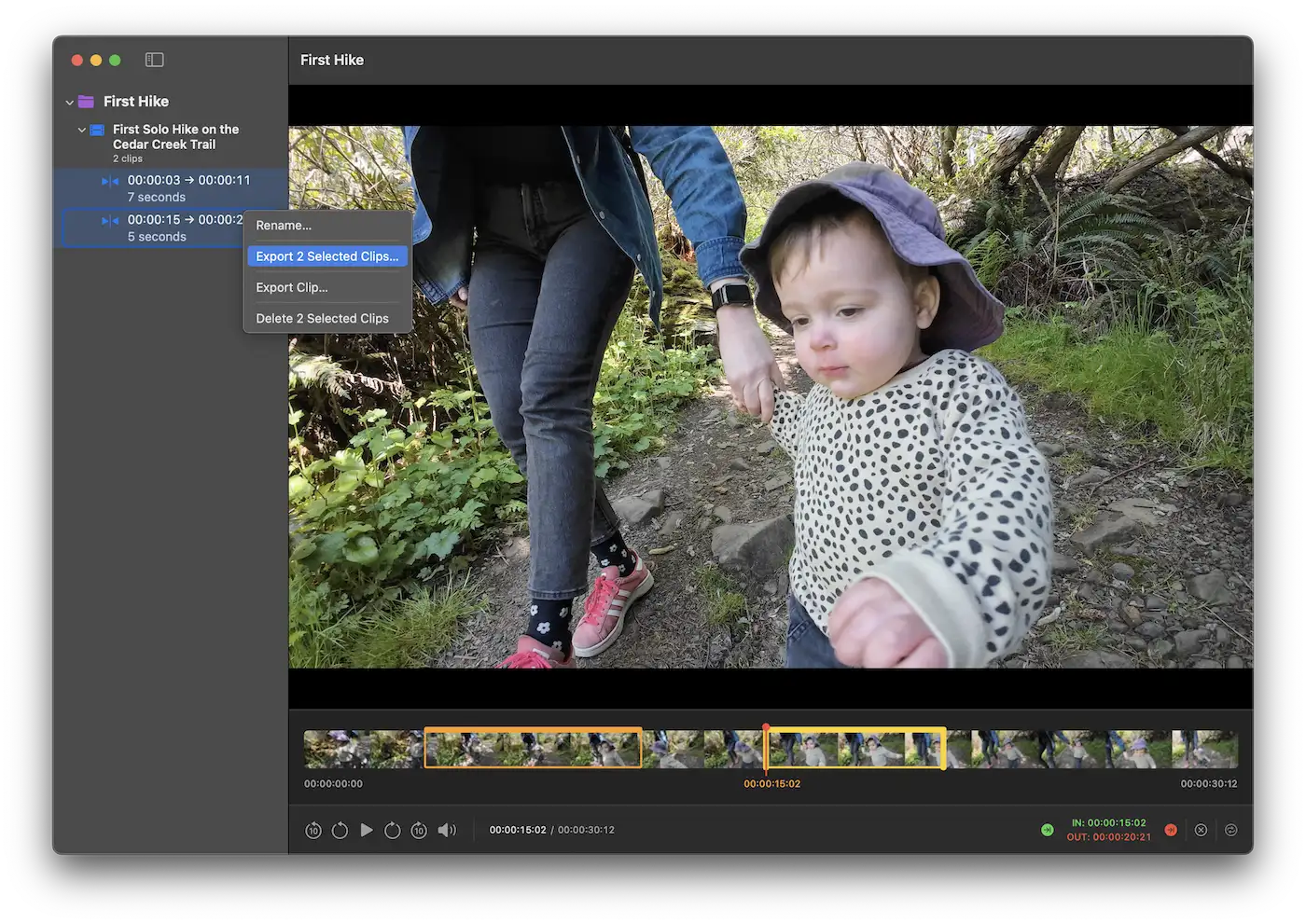
Cmd-click several clips and export them as a batch. Right-click a project or a source video to export every clip underneath it.
Formats QuickTime can't open
Many clip cutting tools on the Mac inherit QuickTime's limits: if QuickTime can't play your file, the app can't either. That's a problem when your sources come from everywhere: YouTube, old hard drives, Blu-ray rips, camera originals. ClipClip handles the incompatible files automatically, with one of three strategies depending on what's inside:
Native formats (H.264, HEVC, or ProRes in
.mp4/.movwith compatible audio) are used as-is. No conversion.Wrong container, for example H.264 video inside an
.mkvfrom a YouTube downloader, is remuxed. Remuxing swaps the file's outer wrapper without re-encoding what's inside. It takes seconds and is a lossless conversion.Codecs QuickTime can't decode (AV1, VP9, 10-bit H.264, 4:2:2 or 4:4:4 chroma) get a ProRes proxy: a 540p low-resolution preview copy generated in the background so playback is smooth while you're marking clips.
On Intel Macs running macOS Sonoma or later, ClipClip also escalates a file to the proxy path when the system's video decoder can't render it. This is a known macOS limitation that affects some files that would otherwise play natively.
The original file is never modified, never replaced by the proxy, and is always what gets used at export. Proxies are for playback only.
Filename chips
Naming clips by hand gets old fast, especially if your work follows a specific filename convention. My clips need to carry the footage's origin, the timecode of the cut, the resolution, and a few other fields. Doing that by hand in QuickTime or an NLE meant typing the same long string dozens of times a day.
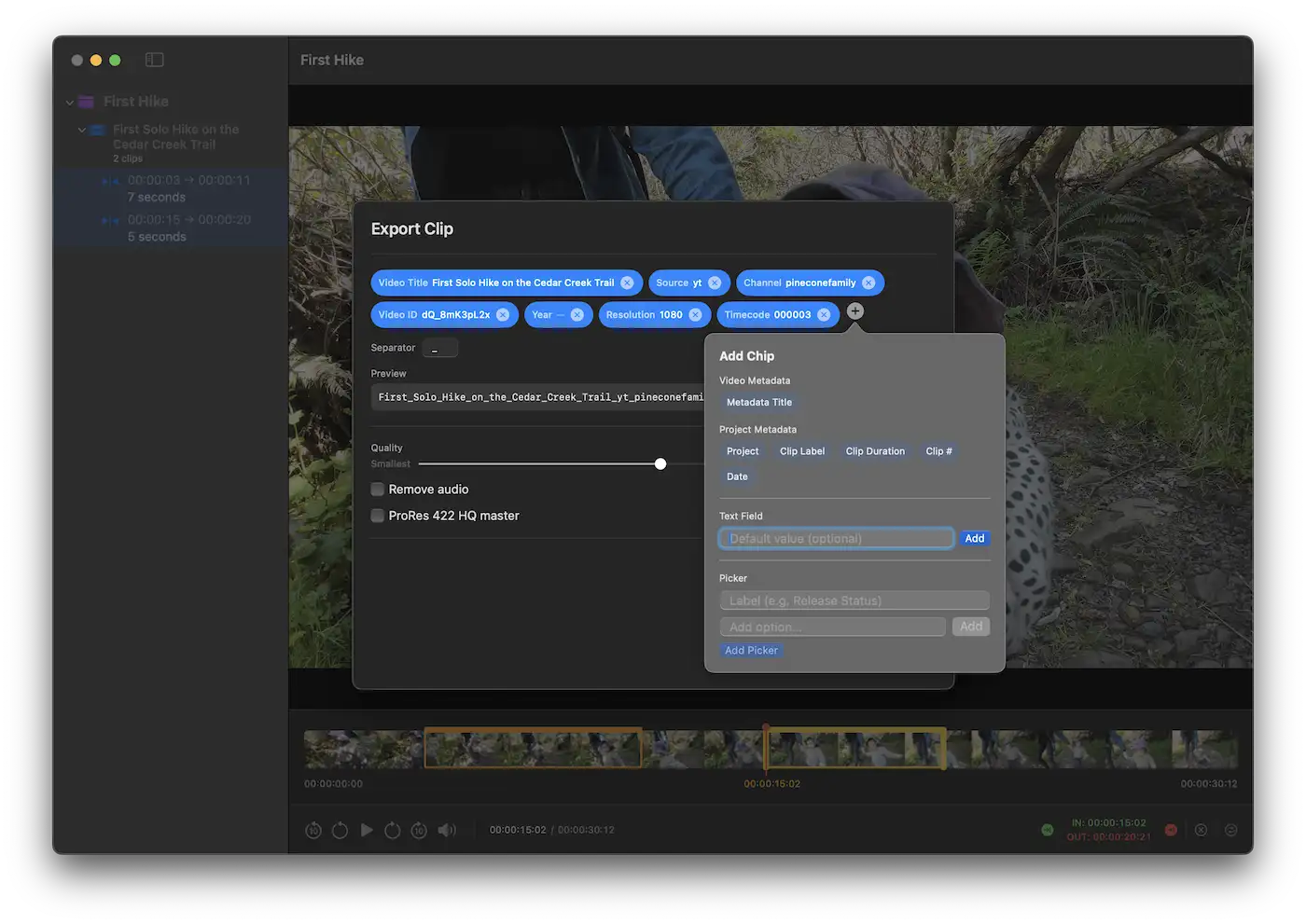
ClipClip builds filenames from a template you arrange once per project out of drag-and-drop chips: blue metadata chips like channel or timecode, gray text-field chips for things like your initials, purple or orange picker chips for fixed labels or drop-downs. The template lives on the project; every clip you export uses it.
Presets save and reuse across projects, so a template you built for one research batch carries over to the next.
Double-click a project, video, or clip in the sidebar to rename it inline. Renames are virtual (the files on disk aren't touched), but the new name flows into exports through the projectName, title, and clipName chips.
Source metadata, when it's there
Some of the filename chips get their values from the source video's metadata, which saves you filling them in by hand. The cleanest case is videos downloaded with Stacher 7 or yt-dlp. I already used Stacher 7 for downloads and wanted a clip tool that took advantage of the metadata it writes. When a video is downloaded with its .info.json sidecar file next to it, dragging the video into the sidebar pulls in the .info.json too, and the channel, video ID, upload date, and original title become available as chips in your template.
If there's no sidecar, ClipClip falls back to the video's embedded artist tag. If there's neither, the metadata chips for that video stay empty and the rest of the template still works.
Export
H.264 in .mp4 by default, encoded with Apple's VideoToolbox in software mode for higher visual quality than the hardware encoder produces, at the cost of a little speed. A quality slider runs from 1% to 100%; audio is included as stereo AAC at 192 kbps, or can be removed entirely with a toggle.
Apple ProRes 422 HQ in .mov is available as an optional master format. It's high quality is suitable for further editing or archiving, at roughly 5–20× the file size of H.264. ProRes bypasses the quality slider. This is what you select when a client has approved a selection and you need a clean master to hand off, rather than another round of H.264 compression.
Cuts are frame-accurate either way. The export pipeline uses the original file as the source, not the proxy, so clip quality is independent of how the proxy looks while you're working.
What it won't do
ClipClip isn't a full editing app, if you’re looking to add transitions or text overlays use the editor you already have.
Proxy files are low quality on purpose. They exist to make playback smooth and fast when your video is not supported by QuickTime. Regardless, the exported cut comes from the original source file, so how the proxy looks has nothing to do with your final export.
ClipClip doesn't download videos. It reads the .info.json sidecar that Stacher 7 or yt-dlp writes, but it won't fetch anything from the internet on its own.
Technical details
ClipClip is a native macOS app, written in Swift and SwiftUI, with persistence via SwiftData and video playback via AVKit and AVFoundation. It uses FFmpeg 7.1.3, bundled as a universal binary under the LGPL-2.1 license. H.264 encoding uses Apple's VideoToolbox in software mode for higher visual quality. ProRes encoding goes through VideoToolbox hardware on Apple Silicon and falls back to software on Intel, because Intel hardware doesn't support ProRes encode. Runs natively on both Apple Silicon and Intel Macs. Requires macOS 14.0 or later.
Nothing is uploaded, analyzed, or shared.
A note on testing
Apple Silicon is what I work on every day. The Intel binary was tested on a 2018 Mac mini but I've had less day-to-day time on Intel hardware than on Apple Silicon so there may be more bugs than I'm aware of. If you hit something specific to Intel, I'd particularly like to hear about it.
If something misbehaves, Help ▸ Diagnostic Logs in the menu bar reveals a per-session log file in Finder. Including the most recent log in your email makes diagnosis a lot faster.
Release notes
ClipClip 1.0.1 - patch release fixing the empty Video ID on TikTok clips and adding ⌘E / ⇧⌘E shortcuts for exporting from the keyboard.
ClipClip 1.0.2 - patch release fixing the empty Source and Video ID filename chips on Instagram clips, and showing the account handle in the Channel chip instead of the uploader's numeric ID
ClipClip 1.0.3 - patch release fixing crashes that can sometimes happen when deleting a video that has clips on it
ClipClip 1.1.0 - now completely free with every feature unlocked, plus a sharper, better-aligned timeline filmstrip.